- Add an organizational group to a guideline (from the Members section of the organization control panel)
- Select multiple members for an action
- View, update or remove a member’s permission in each guideline
Members of an organization are anyone who has been assigned a permission (viewer, reviewer, author, or admin) in a guideline owned by the organization, or anyone who has manually been added manually to this page. When someone is given a permission in a guideline, they are automatically added to the organization’s member list. All members are displayed on this page of the organization control panel.
Members of an organization can be assigned an organizational administrator permission. Organizational administrators can manage their organization, members, permissions, and all guidelines they own, including creating, editing, and publishing. Further information about organizational administrators can be found under Organization control panel (for org administrators).
Members who do not have an organizational administrator permission, and who do not hold a permission in any guideline, have limited access in MAGICapp. They can see the organization listed on their homepage and view the titles and public versions of guidelines owned by the organization, but they cannot access draft or private content, edit guidelines, or change any organizational settings. Their access is read‑only unless they are assigned a specific permission within a guideline. Although these members have limited access, it is often useful to add them to the organization before assigning them to an organizational group, as this streamlines onboarding and group‑based permission management. For an overview of how organizational groups work, see Organization control panel - Organizational groups.
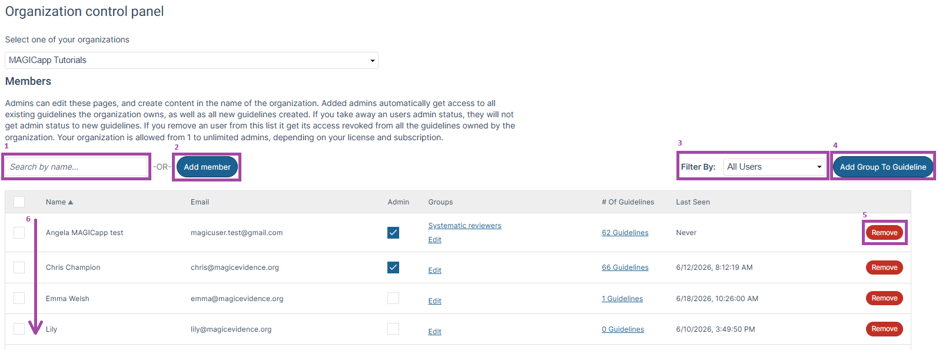
As an organization administrator, you can use the Members page to:
- Search for people who are already members of the organization [1]
- Add existing MAGICapp users as members [2]
(If the person does not yet have a MAGICapp account, you will need to invite them first.)
- Filter members by organizational groups [3]
- Add an organizational group to a guideline (see below) [4]
- Remove members from the organization [5]
(If the person has a guideline permission—viewer, reviewer, author, or admin—those permissions will still remain in the guideline.)
- View all members, including their email address, organizational administrator status, group membership, number of accessible guidelines, and last login date [6]
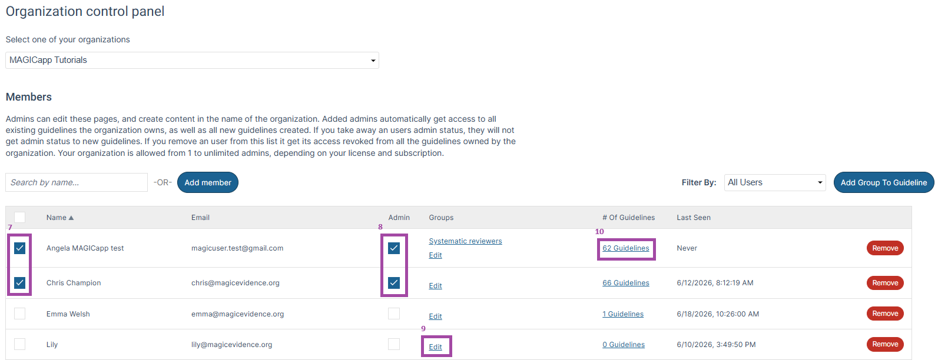
- Select multiple members to email, create an organizational group, or to remove at the same time (see below) [7]
- Assign or remove organizational administrator status using the checkbox [8]
- Edit which organizational groups members belong to [9]
- View, update or remove a member’s permissions in each guideline they have access to (see below) [10]
Add an organizational group to a guideline (from the Members section of the organization control panel)
For an overview of how organizational groups work, see Organization control panel - Organizational groups.
Once an organizational group has been added to a guideline, it becomes a guideline group. See Guideline groups for more information.
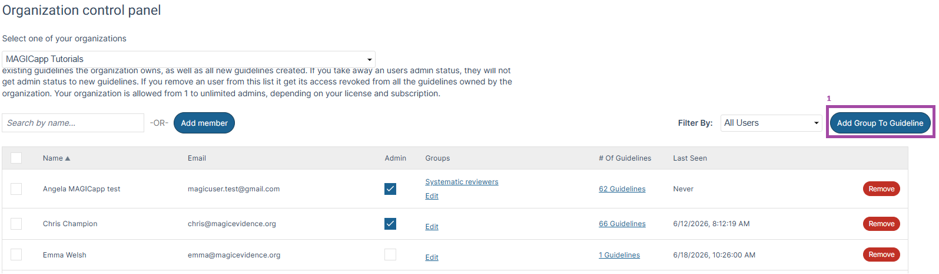
To add an organizational group to a guideline from the Members section of the organization control panel :
- Select Add Group to Guideline.
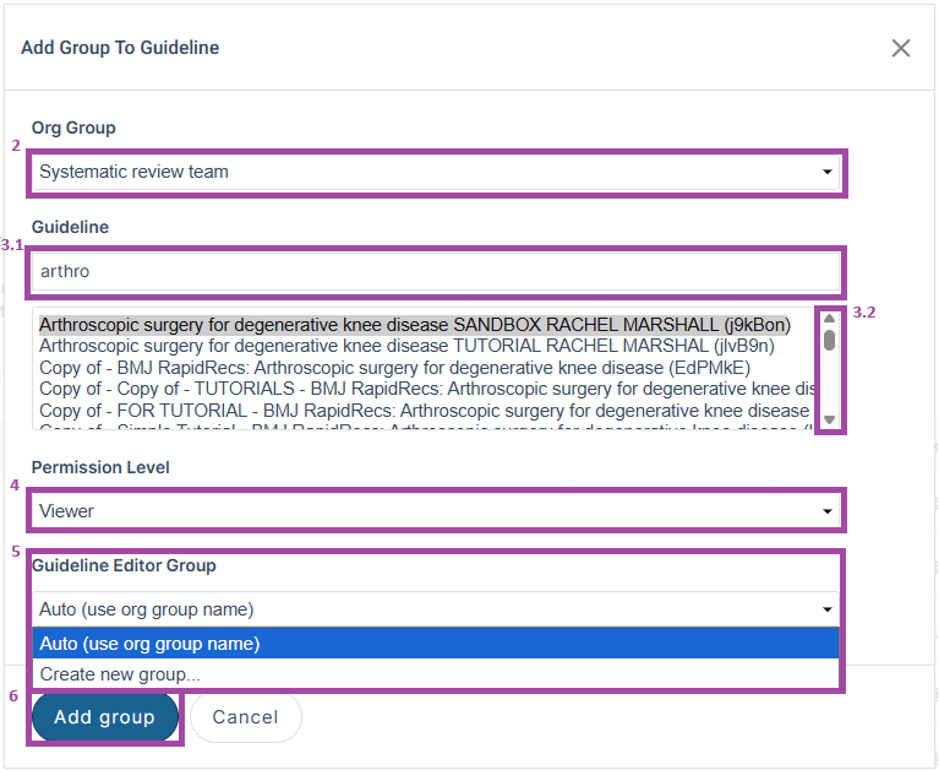
- Choose the organizational group from the drop‑down list.
- Find the guideline, either by:
- Using the search box, or
- Scrolling through the list of available guidelines
- Select the permission level you want the group to have in that guideline. For more information about guideline permission levels, see Who can do what?
- Under Guideline Editor Group, choose the name the group will have within this specific guideline.
- To keep the same name as the organizational group, select Auto (use org group name)
- To use a different name for this guideline only, select Create new group… and enter the new name
- Select Add group
You can also add an organizational group to a guideline from the Groups section of the organization control panel. See Organization control panel – Organizational groups for details.
Select multiple members for an action
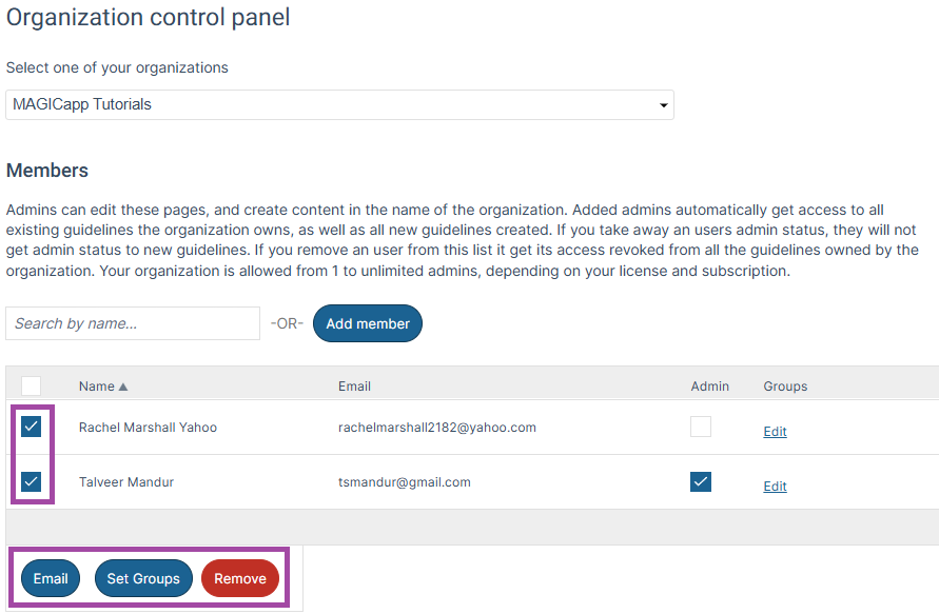
You can select multiple members to email, assign to organizational groups, or remove from the organization. Start by selecting the members you want to include. Once more than one member is selected, the options Email, Set Groups, and Remove appear at the bottom left of the member table. Selecting any of these options opens a pop‑up window.
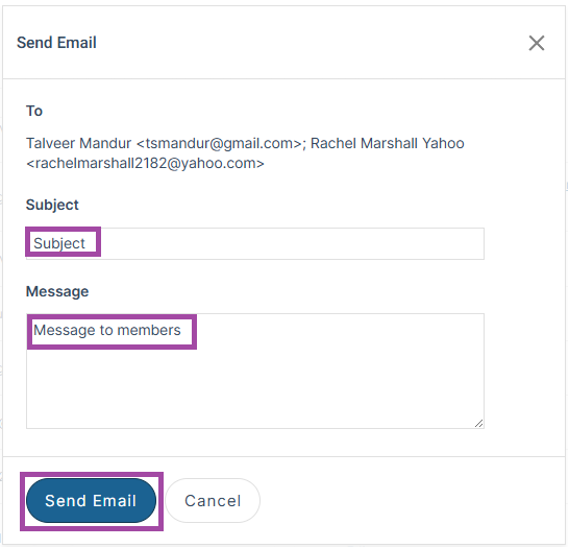
In the Email pop-up, you can enter a subject and message to send to multiple selected members. Once your message is ready, select Send Email to deliver it to all recipients.
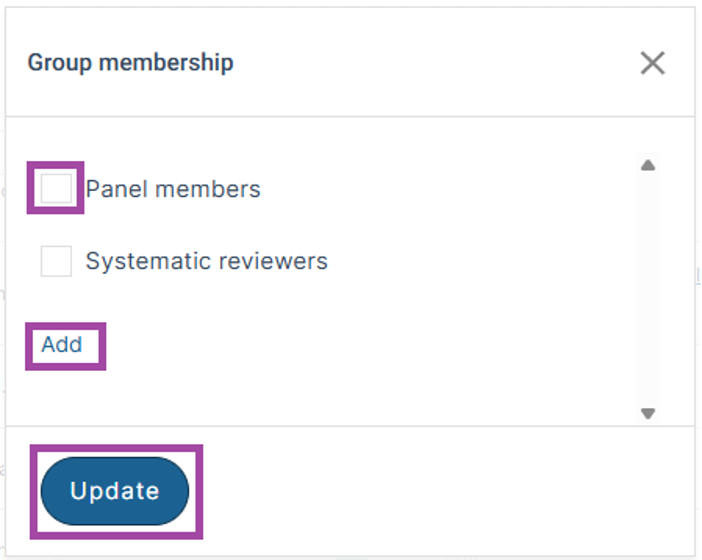
Set Groups
In the Set Groups pop‑up, you can:
- Add the selected members to an existing group
(select the relevant tick boxes)
- Edit the name of an existing group
(select Add, select the pencil icon, update the name, then select Save and Done)
- Remove an existing group
(select Add, then click the x, then select Done)
- Create a new group and add the selected members to it
(select Add, then Add group, enter the group name, select Add, then Done)
After completing your changes, select Update to apply them.
Important: If you add new members to an organizational group that is already assigned to a guideline, the newly added members will not automatically gain access to that guideline. To give them access, you must re‑add the group to the guideline.
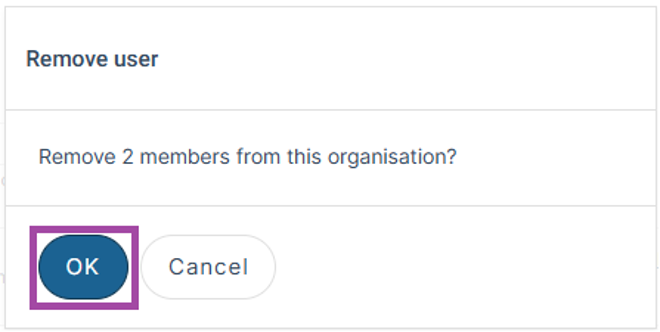
Remove multiple members
If you remove multiple members from the organization, any guideline permissions they hold—viewer, reviewer, author, or admin—will still remain in those guidelines. Removing someone from the organization does not remove their guideline‑level permissions.
View, update or remove a member’s permission in each guideline
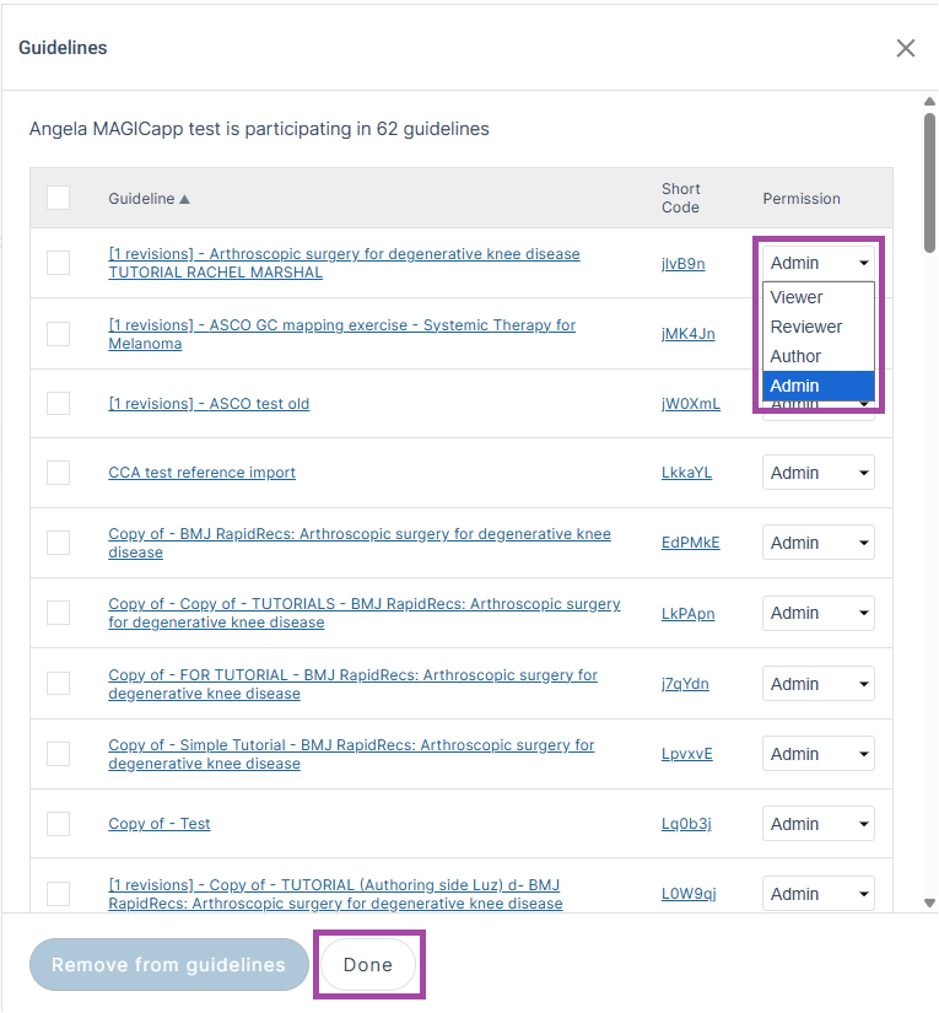
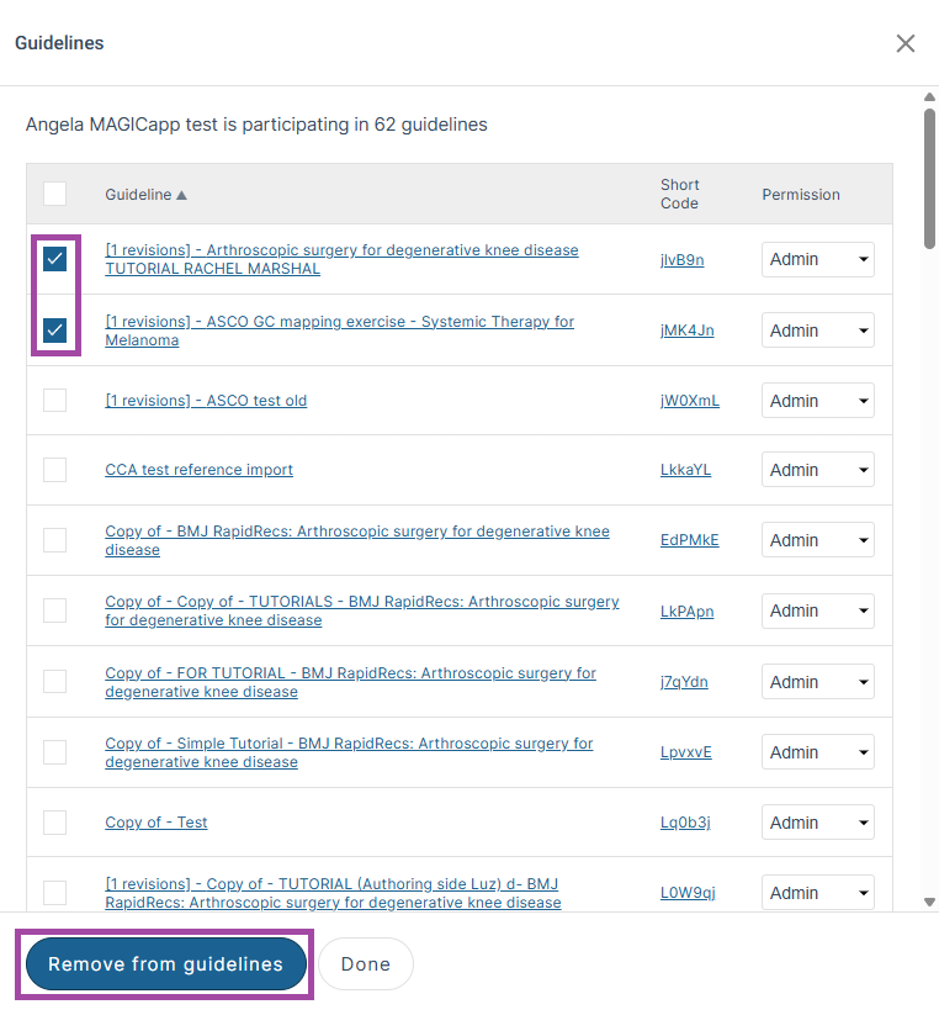
In the member table, under the # Of Guidelines column, select the hyperlinked number to open a pop‑up showing all guidelines the member has access to.
From this Guidelines pop-up, you can:
- View all guidelines the member has access to within the organization
(you can open any guideline by selecting its hyperlink)
- Update the member’s permission level in one or multiple guidelines,
(use the drop-down menus under Permission, then select Done)
- Remove the member’s permission from one or multiple guidelines
(select the relevant guideline checkboxes, then choose Remove from guidelines)
Note: Organizational administrators automatically have the same permissions as a Guideline administrator for all guidelines owned by the organization. However, you may still need to adjust permissions for specific guidelines—for example, if an organizational administrator or any other member should not have access to certain topics, or has a conflict of interest on only a subset of guidelines. This page allows you to manage those exceptions without affecting their permissions elsewhere.
Added: 30 June 2026
Was this article helpful?
That’s Great!
Thank you for your feedback
Sorry! We couldn't be helpful
Thank you for your feedback
Feedback sent
We appreciate your effort and will try to fix the article