Jump to:
- What organizational groups do
- What organizational groups are not
- When to use organizational groups
- How updates to organizational groups work
- Create and add an organizational group to a guideline
- Open guidelines directly from an organizational group
Organizational groups let you manage sets of members who often need the same access across multiple guidelines. Instead of adding people individually to each guideline, you can create a group once and apply it wherever needed. Organizational groups are created and managed in the Organization control panel.
What organizational groups do
- Collect members into reusable sets (e.g., reviewers, methodologists, editorial staff)
- Create a Guideline group when added to a guideline
- Maintain consistency and reduce repetitive permission management
What organizational groups are not
They are not the same as guideline groups. When an organizational group is added to a guideline, a guideline group is created. Guideline groups exist only within a single guideline and are used to organize contributors for that specific project. Organizational groups sit above this and can be reused across all guidelines in the organization.
When to use organizational groups
Common use cases include:
- Reviewer pools: A standing group of reviewers used across many guidelines
- Methodology teams: Methodologists who support all guideline development
- Editorial or administration teams: Central staff who need oversight across all guidelines
- Preparing for upcoming work: Create a group in advance and add it to guidelines when ready
How updates to organizational groups work
- Adding someone to an organizational group does not automatically update existing guidelines.
- To give the new member access, re‑add the group to each guideline; MAGICapp will add only the new person.
- Removing someone from an organizational group does not remove them from guidelines they already have access to. See View, update or remove a member’s permission in each guideline for details on how to remove access.
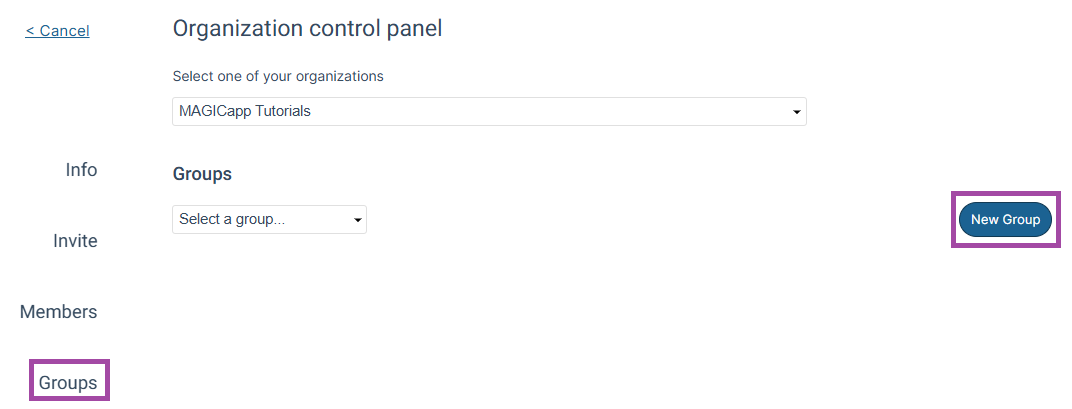
Create and add an organizational group to a guideline (from the Groups section of the organization control panel)
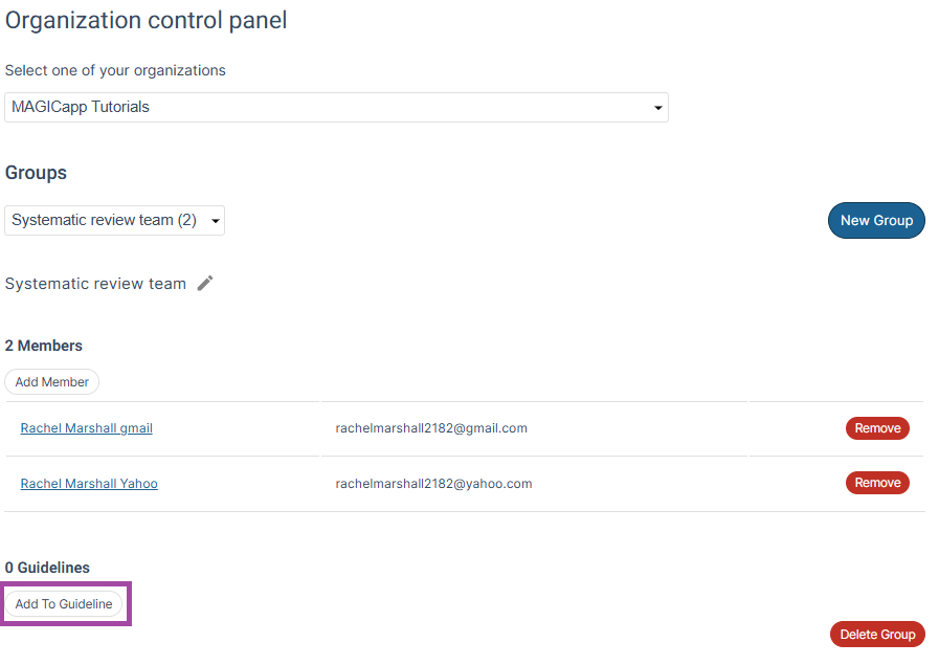
- Select New group
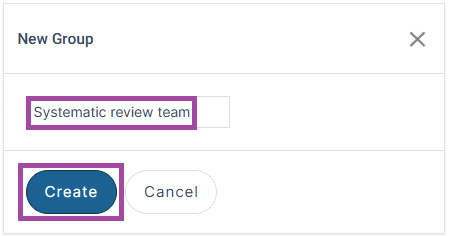
- Enter a clear, descriptive group name and select Create
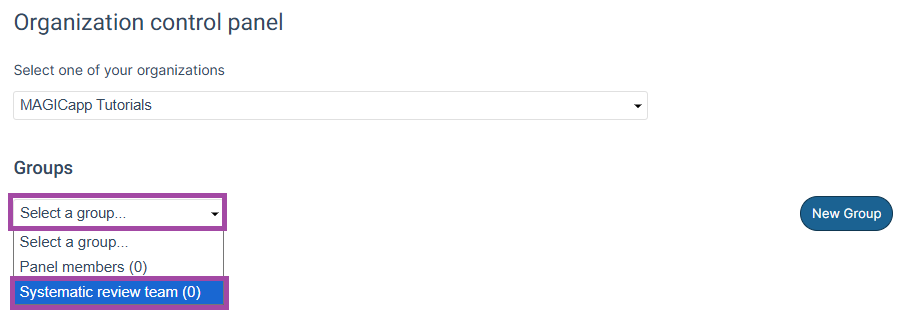
- Select a group to add members to in the Select a group… drop-down menu
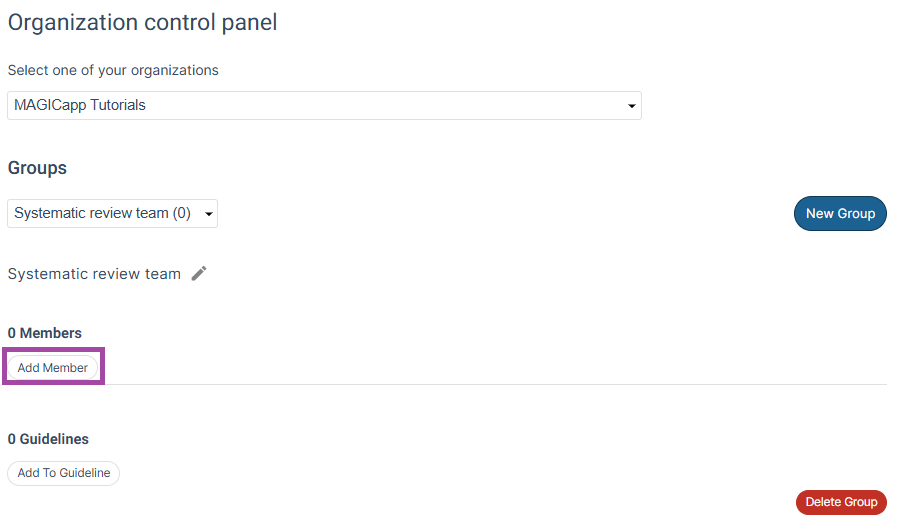
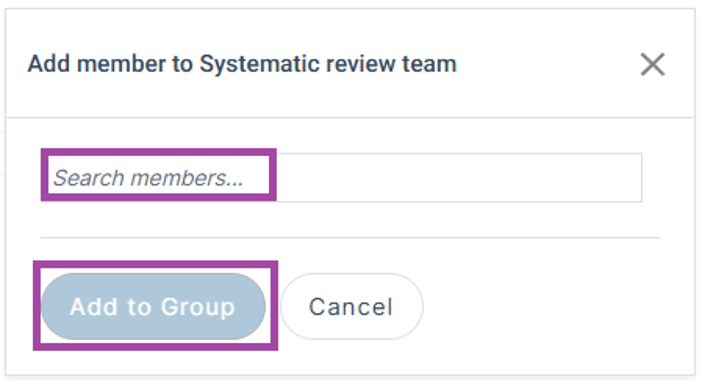
- Select Add Member button
- Use the Search members… field to search for and add organization members. Select Add to Group
- Add all people who should belong to this group.
- Select Add To Guideline button
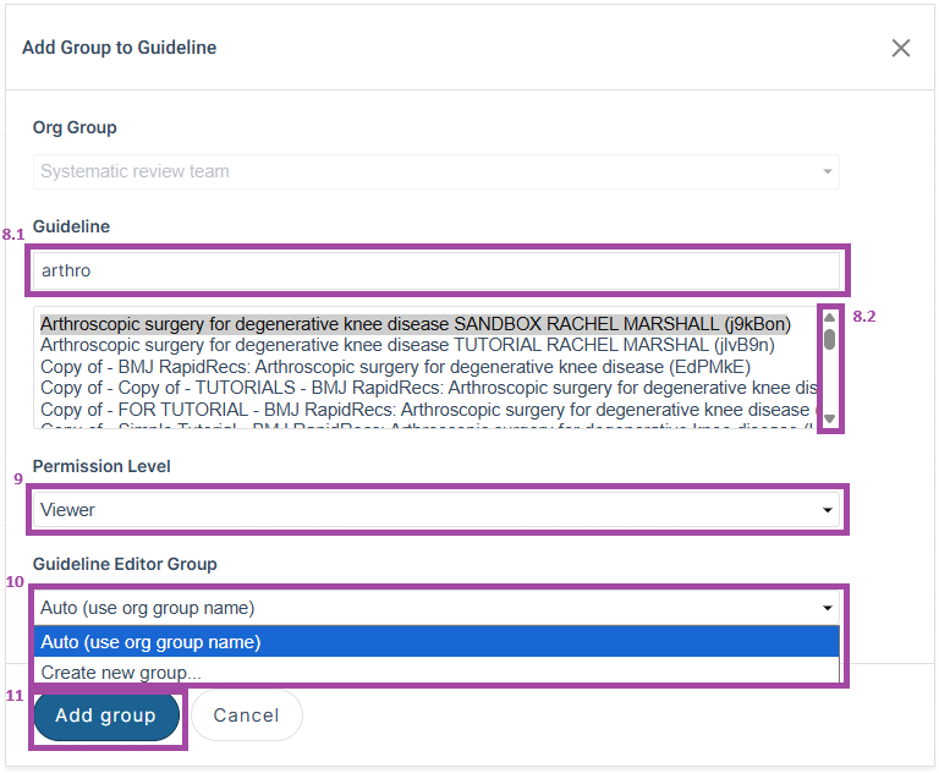
- Find the guideline you want to apply the group to, either by:
- Using the search box, or
- Scrolling through the list of available guidelines
- Select the permission level you want the group to have in that guideline. For more information about guideline permission levels, see Who can do what?
- Under Guideline Editor Group, choose the name the group will have within this specific guideline.
- To keep the same name as the organizational group, select Auto (use org group name).
- To use a different name for this guideline only, select Create new group… and enter the new name.
- Select Add group
You can also add an organizational group to a guideline from the Members section of the organization control panel. See Organization control panel - Members for information.
Open guidelines directly from an organizational group
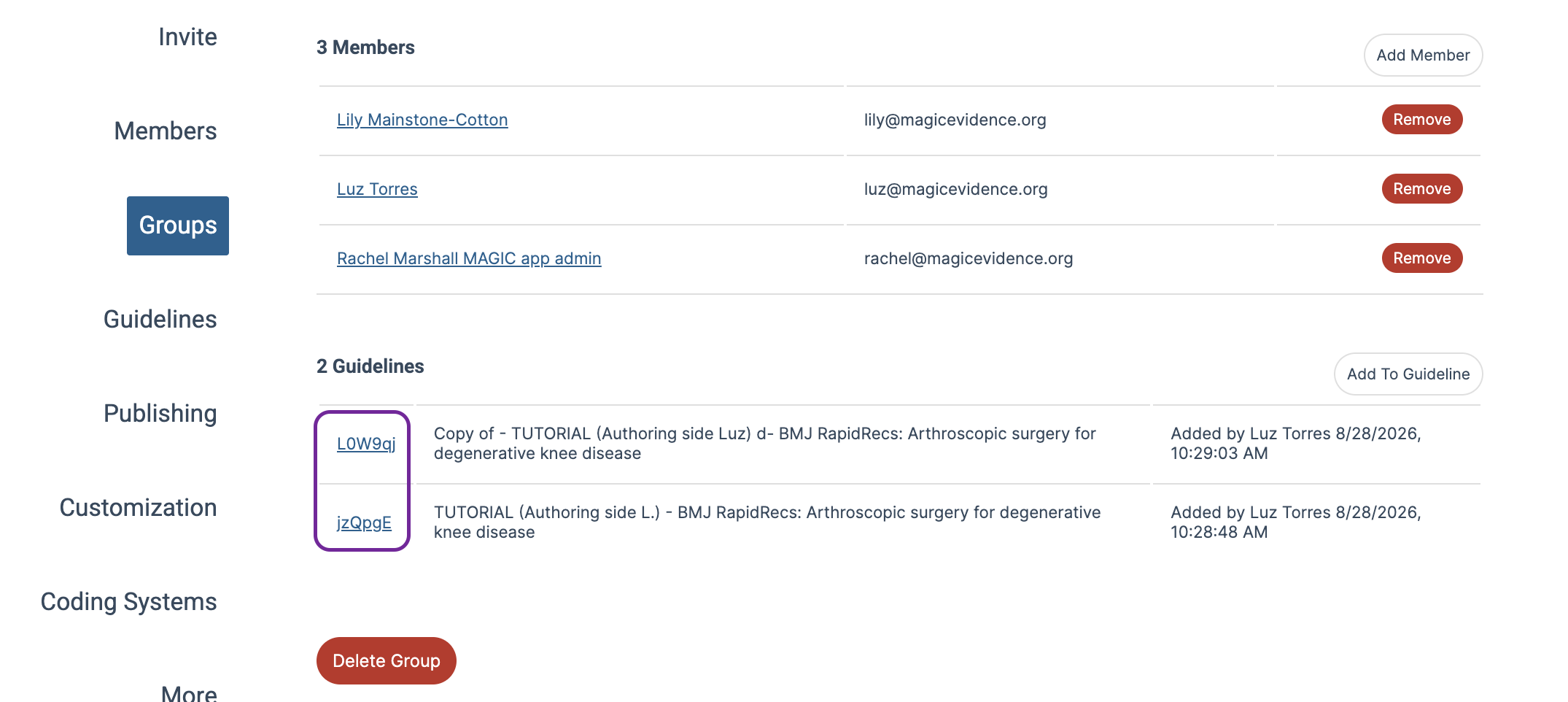
Once you have added an organizational group to one or more guidelines, direct links to those guidelines will appear on the group page. Select a link to open the relevant guideline directly.
This makes it easier to see where an organizational group is being used and quickly access the associated guidelines.
Last Updated: 28 August 2026
Was this article helpful?
That’s Great!
Thank you for your feedback
Sorry! We couldn't be helpful
Thank you for your feedback
Feedback sent
We appreciate your effort and will try to fix the article