To find information about publishing versions, see Publishing versions and making a guideline publicly accessible.
- Understanding guideline versions
- Version labels
- Who can see which versions?
- Designating the current version
Understanding guideline versions
Each time a guideline is published, MAGICapp creates a new published version while preserving all previous published versions. By default, the most recently published version is designated as the current version.
However, guideline administrators can designate any published version as the current version, regardless of whether it is the most recently published version. This provides flexibility when managing guideline updates and the review process, ensuring that users see the version that should be considered current for their intended audience.
For example, authors may publish a newer version of a guideline privately to allow a guideline panel or review group to evaluate proposed updates. While that review is taking place, a previously published public version can remain designated as the current version. This ensures that public users continue to see the approved version as current, while the newer private version is clearly identified as Preliminary until it is ready to replace the current version. It also ensures that permalinks, MAGICapp search results, and other links to the current version continue to direct public users to the publicly available guideline version.
Version labels
Version labels help users understand the status of each guideline version at a glance.
Before a guideline is published for the first time, it is referred to as v0.0 and displayed with a grey DRAFT label.
Published versions are labeled according to their relationship to the designated current version:
- Current version: Displayed with a blue label containing the version number (for example, v2.0) and publication date.
- Outdated version: Versions published before the current version are displayed with a red Outdated label, together with the version number (for example, v1.0) and publication date.
- Preliminary version: Versions published after the current version are displayed with an orange Preliminary label, together with the version number (for example, v3.0) and publication date.
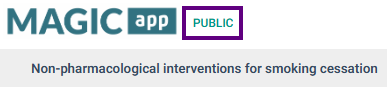
Any publicly available guideline version will also display a green PUBLIC label next to the guideline title, whereas a privately published guideline will not.
Draft guideline

Current published version

Outdated published version

Preliminary published version

Publicly available published guideline
Who can see which versions?
The drafts and published versions available to a user depend on their permissions for the guideline, and whether a version has been published publicly.
Drafts:
A draft is either:
- the initial unpublished version of a guideline; or
- an unpublished working copy based on the most recently published version.
Because drafts are always based on the most recent published version, previously published versions cannot be edited directly. If you select Edit while viewing an older published version, MAGICapp will take you to the most recent draft version.
Note: Once a guideline has been published, only the most recently published version can be edited. Older published versions are preserved as historical records and cannot be restored as editable versions.
Draft access depends on a user's permission level:
- Administrators can view the draft.
- Authors can view the draft if they are assigned as an author to that draft.
- Reviewers can view the draft if they are assigned as a reviewer to the draft.
- Viewers and public readers cannot view drafts.
Administrators and authors can access drafts through the guideline's Edit button or from the Latest draft (not published): MM/DD/YYYY date link on their MAGICapp homepage. Reviewers can access drafts that have been shared with them from the Latest draft (not published): MM/DD/YYYY date link on their MAGICapp homepage.
Published versions:
Published versions are versions of a guideline that have been published and added to the guideline's version history. Depending on the publication settings, a published version may be publicly available or shared only with selected users.
In User Management (Permissions), published versions can only have the Reviewer or Viewer role assigned. This is because published versions cannot be edited, so the Admin and Author roles are available only for guideline drafts. When a draft is published, users who were assigned the Admin or Author role in that draft are automatically given Reviewer access to the resulting published version.
Access to published versions depends on the permissions a user has on the current draft, permissions they have been assigned on specific published versions, and whether the published version was published publicly:
- Administrators on the draft can view all published versions (as a Reviewer).
- Authors on the draft can view the most recently published version, any published versions that were created from drafts on which they were assigned as an Author (as a Reviewer), and any publicly available published versions.
- Reviewers and Viewers can view published versions to which they have been granted access, as well as any publicly available published versions.
- Public readers can view publicly available published versions.
All users can access the published versions available to them through Version history and subscription. Administrators and Authors on drafts can also access the version history through Publishing, version history and subscription in editing mode. Published versions can be also be viewed in MAGICapp via a direct link, and a PDF of that version can be downloaded using the PDF icon in the top-right corner of the page.
Designating the current version
Guideline administrators can change which published version is designated as the current version at any time. When the current version is changed, MAGICapp automatically updates the version labels so that the selected version is displayed as the current version and other published versions are labeled accordingly.
The current version is also used by MAGICapp when directing users to the latest version of a guideline. As a result, the version designated as current affects guideline access through MAGICapp search results, permalinks, and other links that point to the current version. If a private version is designated as the current version, public users will not be able to access the guideline through these routes, even if an older public version exists. If you want a previously published version to remain publicly available while working on a private update, ensure that the publicly available version remains designated as the current version.
A version can be designated as the current version in one of two ways:
- When publishing a new version.
- At any time while in editing mode.
Designating the current version when publishing a new version
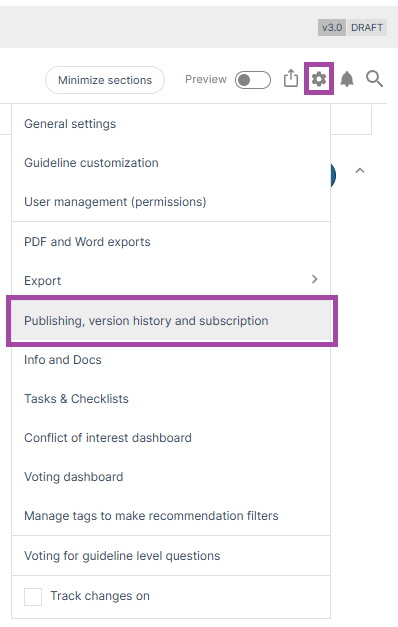
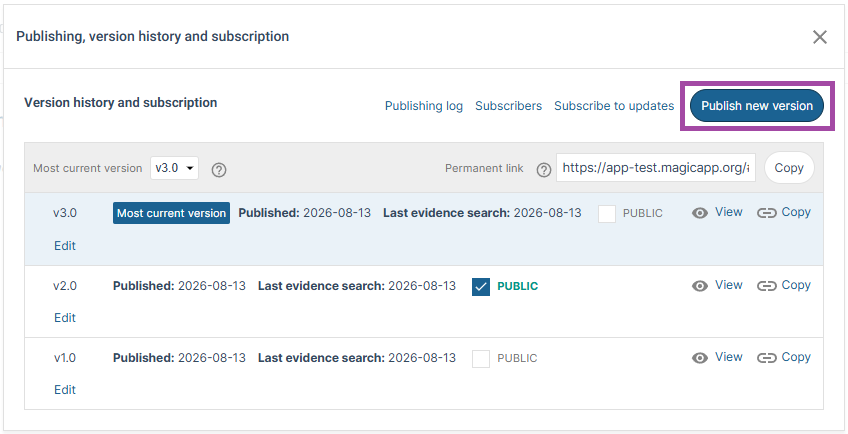
- Under the settings icon, go to Publishing, version history and subscription.
- Select Publish new version.
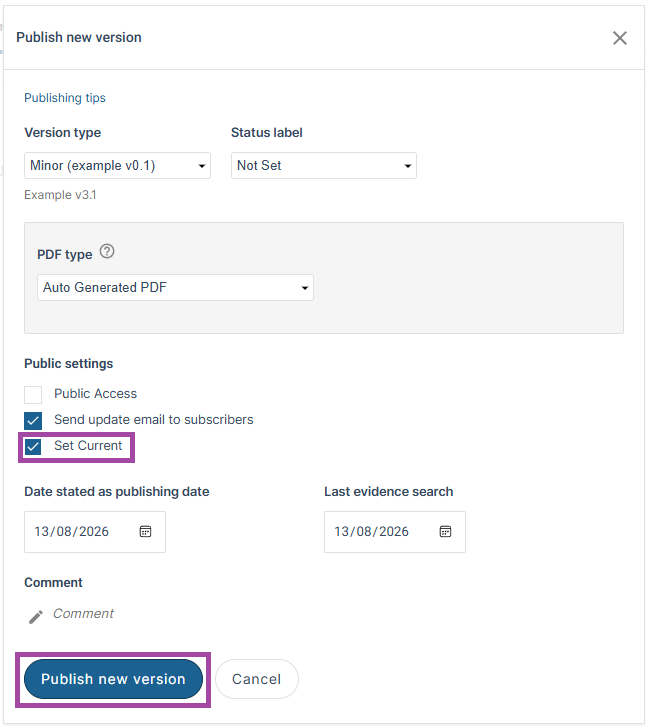
The Set current checkbox is selected by default. As a result, the newly published version will become the current version automatically.
To keep the existing current version unchanged, clear the Set current checkbox before publishing. The previously designated current version will remain the current version.
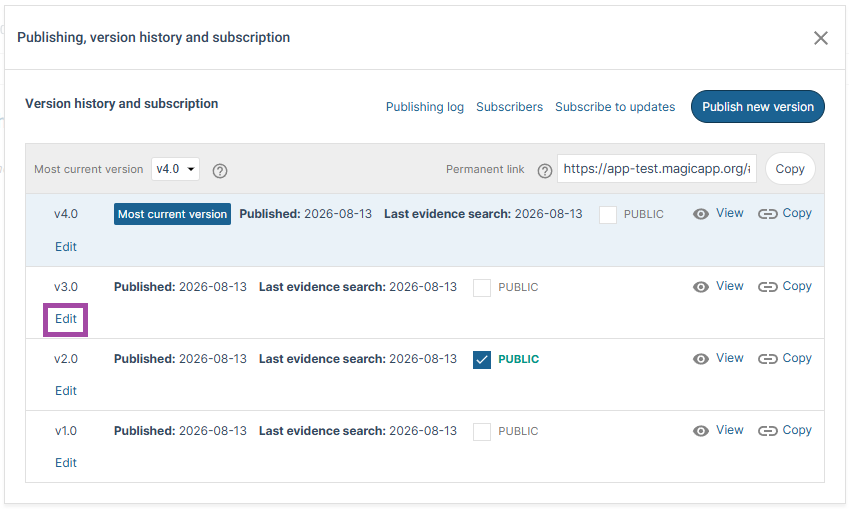
- Under the settings icon, go to Publishing, version history and subscription.
- Locate the version you want to designate as the current version and select Edit.
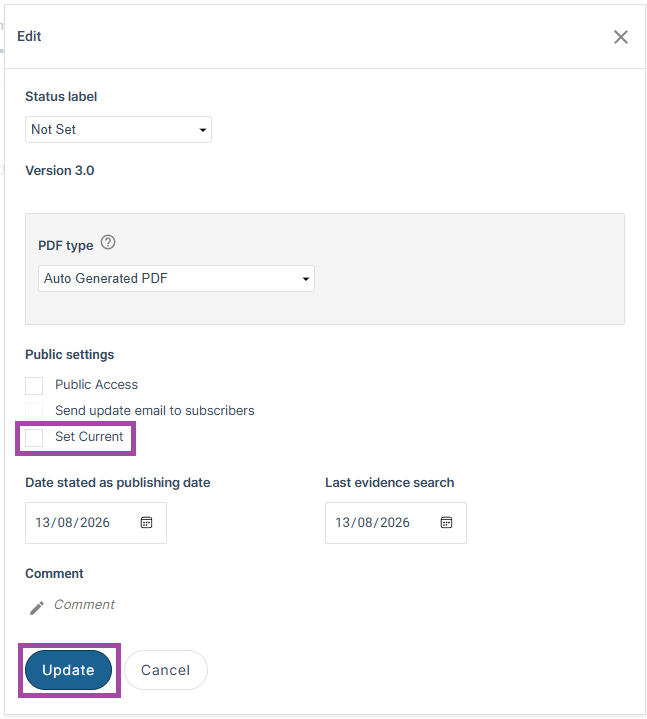
- Select the Set current checkbox and click Update.
Was this article helpful?
That’s Great!
Thank you for your feedback
Sorry! We couldn't be helpful
Thank you for your feedback
Feedback sent
We appreciate your effort and will try to fix the article