MAGICapp automatically generates several figures to support guideline development, including:
- decision aids (optional)
- graphical views of Summary of Findings tables
- visualisations of the data source for the relative effects
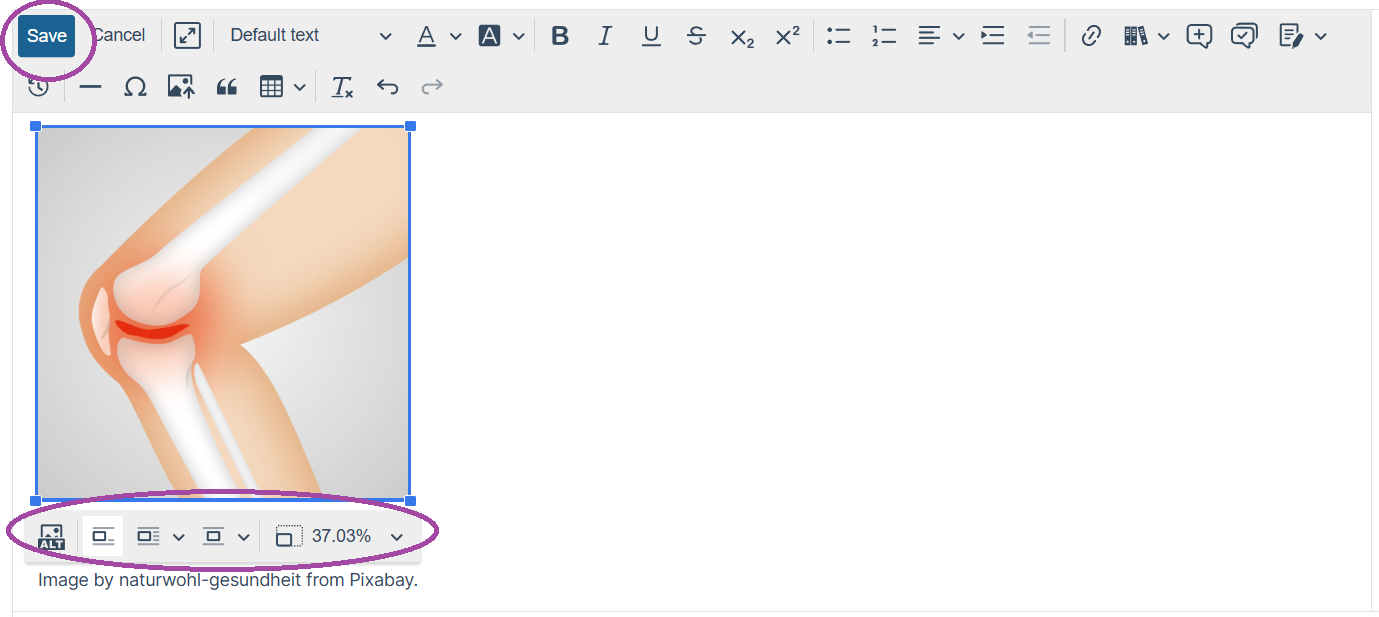
You can also add a figure to any text section of your guideline by opening the section, selecting Edit (Fig 1), and using the Upload image from computer button to choose a file (Fig 2). Once inserted, you can resize the figure, adjust how it sits within the text, and add alternative text—a brief description that conveys the image’s content and purpose for users who rely on screen readers. When you have finished adding your figure, click ‘save’ (Fig 3).
To remove a figure, open the section, select Edit, select the figure, and then click Delete on your keyboard.
Important: If you reproduce a figure from a published source, you are responsible for securing permissions and providing correct attribution. Requirements vary by publisher; consult the relevant publisher’s guidance.
Fig 1: Select the pencil icon in any text section to edit.

Fig 2: Use the ‘Upload image from computer’ button to choose a file.
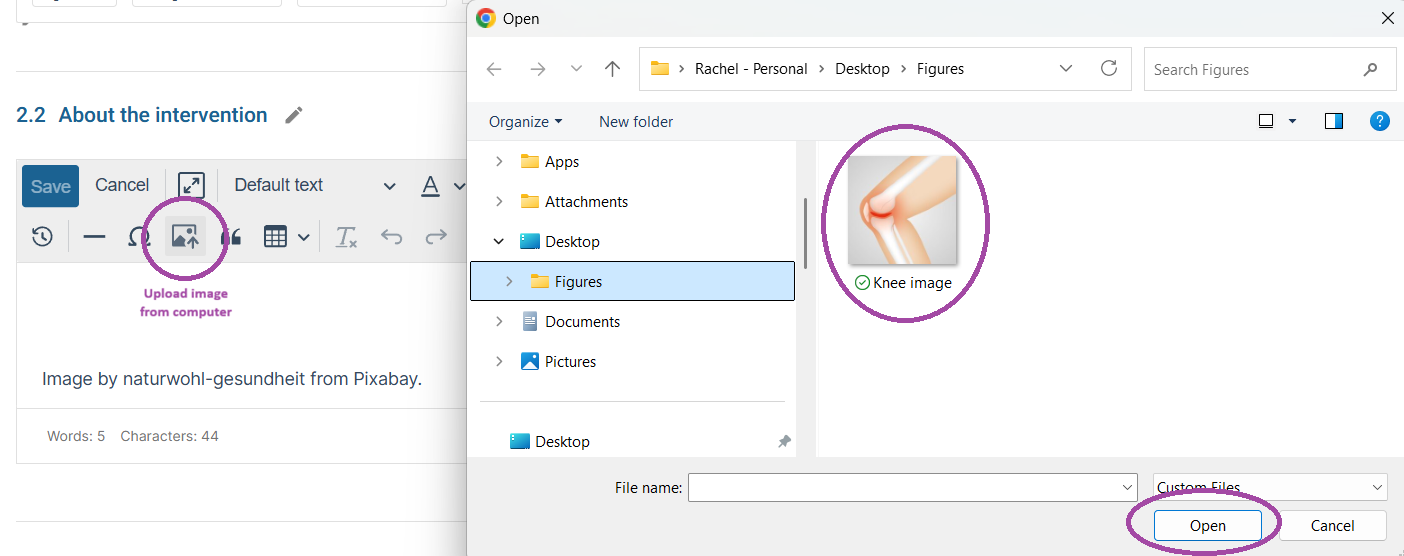
Fig 3: Use the image menu to resize the figure, adjust how it sits within the text, and add alternative text.
Next: How do I add or remove a figure associated with a PICO?
See also: Trouble shooting issues with figures
Added: 07 May 2026
Was this article helpful?
That’s Great!
Thank you for your feedback
Sorry! We couldn't be helpful
Thank you for your feedback
Feedback sent
We appreciate your effort and will try to fix the article